CODECS • GOPRO • DJI • INSTA360 • WINDOWS
A modern action camera can record a file that is smaller than an older camera’s file and still be much harder for your PC to edit. That sounds backwards until you separate five things camera marketing often mixes together: container, codec, bitrate, bit depth and color profile.
In this guide we use current GoPro, DJI and Insta360 cameras to explain what H.264 and H.265/HEVC actually change, why 120 Mbps and 240 Mbps are not quality scores by themselves, why 10-bit is not a codec, and why a fast editor needs good hardware decoding and proxy handling—not just a long format-support list.
The easiest way to understand an action-camera video file
The box that holds video, audio and metadata.
The compression system used to store the moving image.
How much compressed data the camera spends per second.
How finely each color channel can be represented.
How brightness and color are mapped into those stored values.
Think of it like shipping a technical instrument.
MP4 or INSV is the shipping case. H.264 or H.265 is the packing method. Bitrate is how much packing space you are willing to spend each second. 8-bit or 10-bit describes the precision of the stored color values. Log or HLG describes how the camera distributes scene brightness and color inside those values.
Changing one of those does not automatically change the others.
What current GoPro, DJI and Insta360 cameras actually record
| Camera | Container / format | Video codec | Maximum published bitrate | Color notes |
|---|---|---|---|---|
| GoPro MISSION 1 / PRO | MP4 | H.265 / HEVC | 240 Mbps | 8-bit / 10-bit, GP-Log2, HLG HDR |
| GoPro HERO13 Black | MP4 | H.265 / HEVC in video modes | Depends on mode / bitrate setting | 10-bit available; GP-Log and HLG workflows |
| DJI Osmo Action 6 | MP4 | H.265 / HEVC | 120 Mbps | D-Log M available in supported modes |
| Insta360 X6 | INSV for 360; MP4 for flat video | H.265 / HEVC | 240 Mbps for ordinary 360 modes | I-Log 10-bit available |
The first important conclusion is surprisingly simple: the current high-end action/360 cameras have largely converged on HEVC. H.264 still matters for older cameras, compatibility modes and existing archives, but the pressure of 4K, 8K, 10-bit and 360 video makes the extra compression efficiency of H.265 extremely valuable.
H.264 vs H.265/HEVC in plain English
H.264/AVC is older, extremely widespread and comparatively easy for a huge range of hardware and software to decode.
H.265/HEVC is newer and more efficient. Standards work around HEVC has demonstrated roughly double the compression efficiency of H.264/AVC in comparable conditions: broadly speaking, the same visual quality can often be stored at around half the bitrate, although real-world results depend heavily on the encoder, content and settings.
Imagine describing every frame of a mountain-bike video to another person.
H.264 is already clever: it says “most of this frame is the same as before; only these areas changed.”
H.265 is allowed to describe the same scene with a more sophisticated set of instructions. That can save space—but the computer has to do more work to reconstruct the image.
That is the tradeoff:
| H.264 / AVC | H.265 / HEVC | |
|---|---|---|
| Compression efficiency | Good | Better |
| Compatibility | Excellent | Very good on modern hardware |
| CPU decode complexity | Lower | Higher |
| Good fit for 4K/8K | Possible, but larger files | Very strong fit |
| Old-PC friendliness | Better | Can be painful without HW decode |
Bitrate: how much compressed data the camera spends every second
Bitrate is measured in bits per second. Action cameras normally show it in Mbps — megabits per second.
A useful rough conversion is:
120 Mbps ≈ 15 MB/s ≈ 900 MB per minute.
240 Mbps ≈ 30 MB/s ≈ 1.8 GB per minute.
Real files vary because cameras often use variable bitrate and the container also carries audio and metadata, but those numbers make the scale easy to understand.
Do not read that graph as a quality ranking. Insta360 X6 is encoding a huge 360-degree frame. GoPro MISSION 1 and DJI Action 6 have different sensors, resolutions, frame rates, processing and image goals. Bitrate only tells us the rate at which compressed data is written.
A well-encoded 120 Mbps HEVC file can absolutely look better than a poorly encoded 200 Mbps file.
10-bit color is not a codec
This is one of the most common sources of confusion.
GoPro’s own 10-bit documentation describes the basic difference clearly: 10-bit video can represent more than one billion color combinations, while conventional 8-bit video is around 16 million.
The reason is mathematical:
- 8-bit RGB gives 256 levels per channel: 256 × 256 × 256 ≈ 16.7 million combinations;
- 10-bit RGB gives 1024 levels per channel: 1024 × 1024 × 1024 ≈ 1.07 billion combinations.
In real compressed camera video, chroma subsampling and color transforms complicate the exact storage model, but the practical consequence remains: 10-bit gives color correction and smooth gradients much more room before banding appears.
And it is completely possible to have:
- H.265 + 8-bit;
- H.265 + 10-bit;
- H.264 + 8-bit;
- and, depending on the camera/profile, H.264 + higher bit depth as well.
The codec and the bit depth are separate decisions.
GP-Log, D-Log M, I-Log and HLG are also not codecs
Another common mistake is saying “this camera records in the Log codec.” It does not.
Log describes a tonal/color encoding strategy. The compressed picture can still be stored using H.265.
So a GoPro file can conceptually be:
MP4 container → H.265 codec → 10-bit signal → GP-Log tonal encoding.
A DJI file can be:
MP4 container → HEVC codec → D-Log M image.
An Insta360 X6 360 recording can be:
INSV container → H.265 codec → I-Log 10-bit image.
Once those layers are separated mentally, camera settings become much easier to understand.
For our HDR observations, see GoPro vs Insta360 vs DJI HDR: Which Looks Most Natural?. For the complete HDR editing chain, see How to Edit HDR Action Camera Video on Windows.
INSV vs MP4: why Insta360 looks different before you even reach the codec
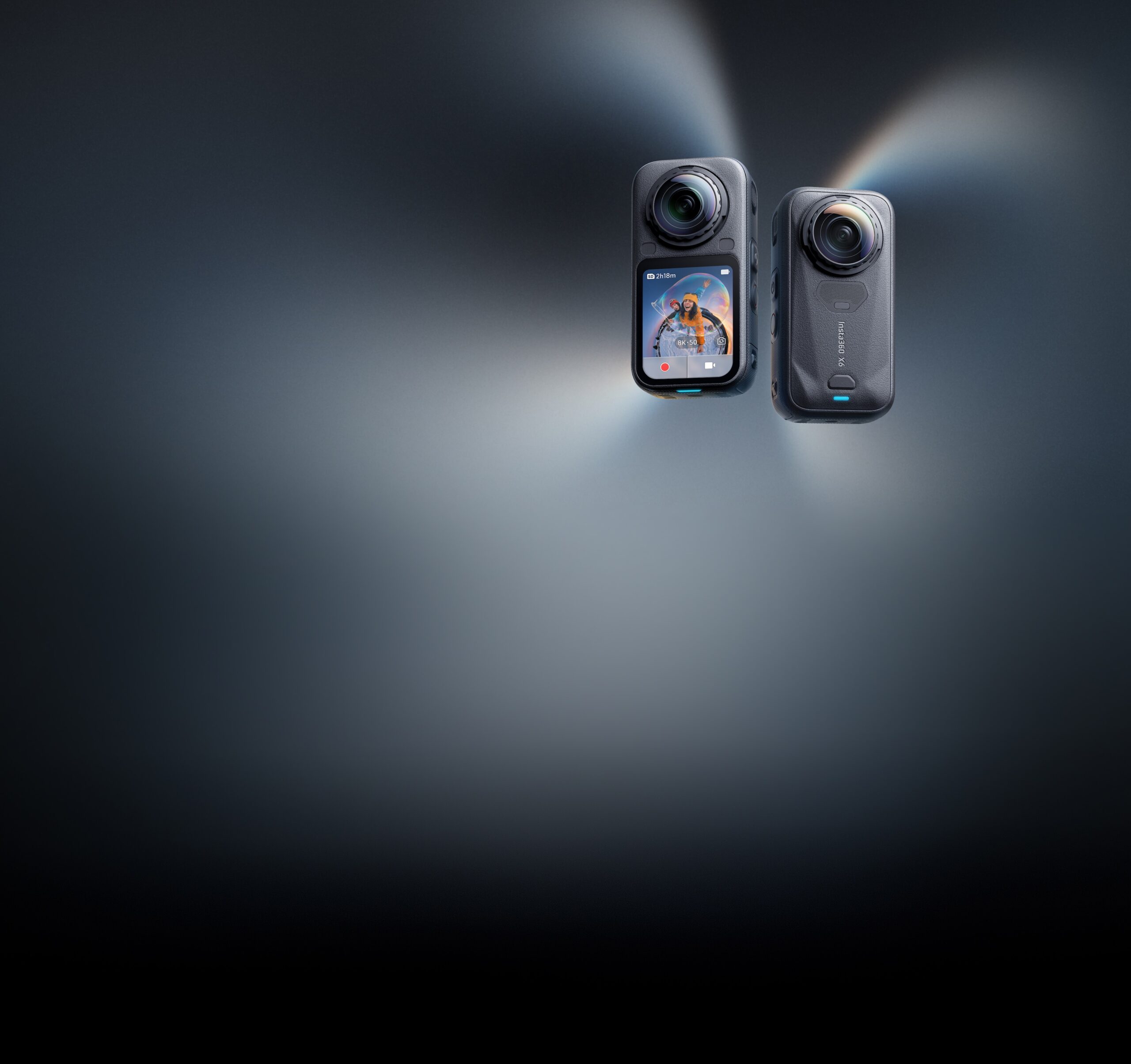
An INSV file does not mean Insta360 invented a replacement for H.265.
It is useful to think of INSV as an Insta360-specific container/workflow file. The X6 specifications separate these concepts explicitly: 360 footage uses INSV, flat video can use MP4, while the listed video encoding format is H.265.
The container matters because 360 footage may need additional camera-specific information and processing before you obtain an ordinary reframed 2D video.
This is exactly why “Can my editor open H.265?” and “Can my editor work directly with this camera’s original file?” are different questions.
Why a smaller HEVC file can be much slower to edit
Compression saves storage by replacing raw image information with instructions about how to reconstruct the frames.
The more sophisticated those instructions become, the more work may be required to decode them.
This means:
smaller storage requirement ≠ lighter editing workload.
A 4K or 8K HEVC file can stress several parts of the system at once:
- codec decoding;
- high pixel count;
- 10-bit processing;
- high frame rate;
- HDR or Log color processing;
- stabilization;
- 360 stitching or reframing;
- multiple simultaneous camera streams.
If your GPU contains a compatible HEVC hardware decoder, much of the decoding work can be moved away from the CPU. If it does not—or if the exact HEVC profile is unsupported in hardware—the same file may suddenly feel dramatically heavier.
Why VSDC’s hardware-decoding and proxy strategy matters for action-camera codecs
Codec support on a feature list is the easy part. The harder question is whether the editor can turn that format support into a smooth timeline.
VSDC supports direct use of H.264 and H.265/HEVC source files. Its Video Object settings also expose an HW decoder option specifically for accelerating video decoding.
Our preferred order for difficult action-camera footage is therefore:
- Keep the camera original.
- Import it directly into VSDC.
- Use hardware decoding when the system supports the source profile.
- If the timeline is still heavy, create proxies.
- Edit against the lighter proxies.
- Render from the original source media.
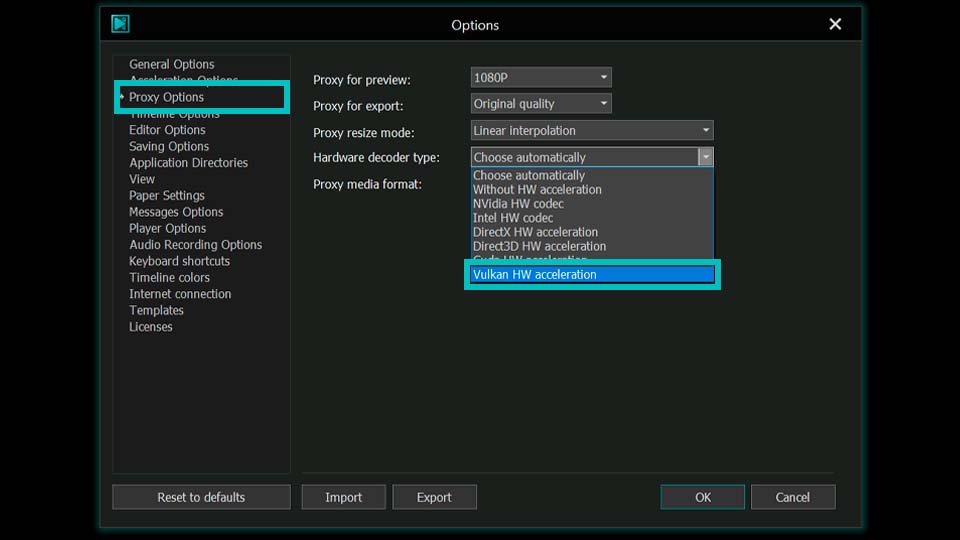
Version 11.2 pushes this workflow further by adding Vulkan-based hardware transcoding for proxy generation. That is particularly relevant to action-camera users because the formats that benefit most from modern compression are often the exact formats that are hardest to scrub smoothly on modest PCs.
The important point is not “convert HEVC to something old before you start.” The better workflow is usually:
preserve the HEVC master → use hardware decode → use a proxy only when needed.
This keeps quality and metadata in the original source while reducing editing friction.
Does higher compression destroy quality?
Not automatically.
A more efficient codec is specifically designed to represent similar visual information with fewer bits. HEVC became important for UHD because it can provide substantially better compression efficiency than AVC/H.264.
But codec efficiency does not make bitrate irrelevant.
If you push any lossy codec too far, artifacts eventually appear:
- blockiness or smearing in fine texture;
- muddy foliage;
- water losing detail;
- compression around fast-moving subjects;
- banding or damaged gradients;
- poor detail in noise and low light.
Action cameras are unusually difficult compression targets because they often record exactly the scenes codecs dislike: leaves, gravel, snow, water, vibration, fast panning and constantly changing detail.
What codec settings would we choose?
For current GoPro
We would generally keep the native HEVC workflow. On MISSION 1, the available high-bitrate and 10-bit options make sense when the footage will be graded or subjected to heavy post-production. HERO13 is likewise fundamentally an HEVC camera in its video modes.
For DJI Action 6
There is little reason to try to avoid HEVC: DJI specifies MP4 (HEVC) as the Action 6 video format. Instead, make sure the editing machine has useful HEVC hardware decode—or plan on proxies.
For Insta360 X6
Keep the original INSV 360 files. They preserve the 360 workflow that makes the camera useful in the first place. Do not convert them to ordinary MP4 just to make Windows Explorer feel simpler before you know what reframing and metadata you need.
For an older PC
If HEVC decoding is the bottleneck, use proxies rather than permanently replacing your camera originals. This is one of the cases where VSDC’s low-overhead Windows workflow and hardware proxy generation are especially attractive.
And what about H.266/VVC?
H.265 is not the end of the compression story. VSDC 11.2 already exposes H.266/VVC as an export codec. VSDC describes VVC as capable of producing files roughly 30–50% smaller than H.265 at the same visual quality.
That does not mean we would convert current action-camera masters to H.266 before editing. Camera acquisition support, hardware decoding and ecosystem compatibility matter more than winning a theoretical compression contest.
For now, HEVC remains the practical center of modern GoPro, DJI and Insta360 workflows.
Action-camera codec FAQ
Is MP4 the same thing as H.264 or H.265?
No. MP4 is a container. H.264 and H.265 are video compression codecs that can be stored inside an MP4 file.
Is INSV a codec?
No. Insta360 uses INSV as a camera-specific 360-video container/workflow format. For X6, the listed video encoding format is H.265.
Is H.265 better quality than H.264?
At comparable encoding quality, H.265 is generally more compression-efficient, so it can achieve similar quality at a lower bitrate or better quality at the same bitrate. The real result still depends on the encoder and settings.
Why does H.265 lag when H.264 plays smoothly?
HEVC is more computationally complex to decode. A compatible GPU hardware decoder can dramatically change performance; otherwise the CPU may carry much more of the workload.
Does 10-bit mean the camera uses H.265?
No. Bit depth and codec are different properties. Modern action cameras often pair 10-bit modes with HEVC because the combination is efficient, but 10-bit itself is not H.265.
Should I convert GoPro or DJI HEVC files to H.264 before editing?
Usually not as the first step. Keep the original files, try hardware decoding, and use proxies if the timeline remains heavy. Render the final project from the camera originals.
Can VSDC edit H.265/HEVC files directly?
Yes. VSDC lists H.265/HEVC and H.264 among supported video formats, provides a hardware-decoder option, and supports proxy workflows for demanding footage.
Technical sources
- GoPro — current camera comparison and MISSION 1 specifications
- GoPro — HEVC explained and current HERO codec usage
- GoPro — HERO13 Black 10-bit color information
- DJI — Osmo Action 6 specifications
- Insta360 — X6 photo/video format, H.265 and bitrate specifications
- ITU — H.264/AVC and H.265/HEVC compression-efficiency overview
- VSDC — H.264/H.265 support and hardware decoder option
- VSDC 11.2 — Vulkan proxy generation and H.266/VVC